
Run ImTranslator
How to run ImTranslator
- click
 ImTranslator button on the Chrome toolbar to run ImTranslator toolbar application.
 ImTranslator button on the Chrome toolbar to run ImTranslator toolbar application.
Set a preferred translation application in Advanced Options.
- open the context menu ImTranslator to choose a translation application (ImTranslator or Webpage Translation)

- use shortcuts to launch ImTranslator (Alt+Z) or translate a webpage (Alt+P)
Translate Selected Text
- use context menu ImTranslator, then choose your preferred translation application
- click ImTranslator button on the Chrome toolbar to run your preferred application (set in Advanced Options)
- click ImTranslator floating button to run the Pop-up Bubble Translator
- use corresponding shortcut keys to run translation applications

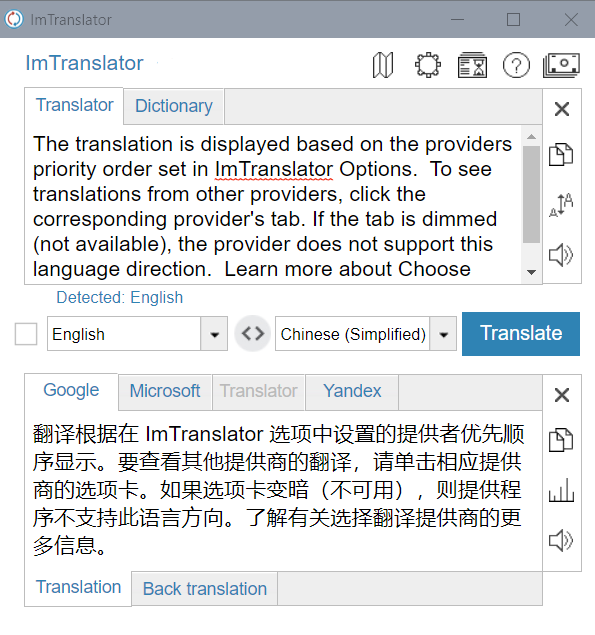
ImTranslator application opens with the selected text and its translation.
Inline Translator embeds the translation to a webpage.

Pop-up Bubble Translator displays the translation in a pop-up bubble window.
